
How to Cancel Shopify Subscription
If you want to stop Shopify charges, you can cancel your subscription from the Settings section inside your Shopify admin. The process is simple and only takes a few minutes. Before you deactivate your store, make sure you review active apps, unpaid bills, and domain settings. This helps you avoid unexpected charges or losing important store data later.
How to Cancel Your Shopify Subscription (Step-by-Step Process)
You can cancel your Shopify subscription directly from your store dashboard. The whole process only takes a few minutes if you already have access to the store owner account.
Step 1: Log In to Your Shopify Admin Account
Go to the Shopify login page and sign in using your store owner account. Make sure you use the main account connected to billing permissions. Staff accounts usually cannot cancel a Shopify subscription.

Step 2: Open the Settings Section
After logging in, look at the bottom left corner of your Shopify dashboard and click on Settings. This section contains your billing, account, and subscription options.

Step 3: Go to the Plan and Billing Page
Inside Settings, click on Plan to open your current subscription details. Here you can view your active Shopify plan, billing cycle, and available account actions.

Step 4: Click “Cancel Plan” or “Deactivate Store”
Scroll down until you see the option to cancel your subscription. Depending on your Shopify version, you may see Cancel Plan or Deactivate Store. Click the option to continue.

Step 5: Review Billing Details and Active Services
Before Shopify completes the cancellation, it may show warnings about unpaid invoices, active apps, or connected domains. Review everything carefully to avoid future charges from third party services.
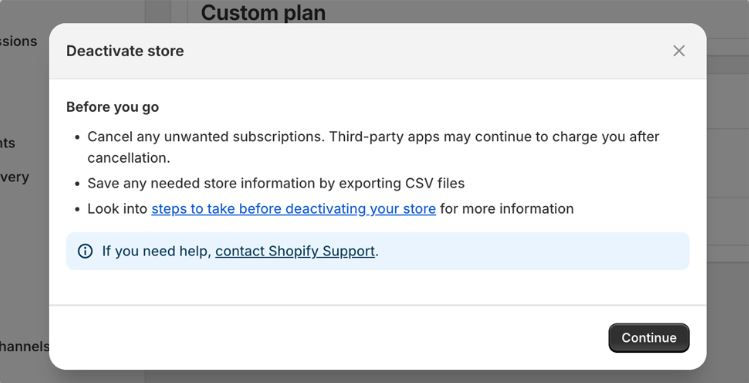
Step 6: Confirm Your Password and Finish Cancellation
Enter your password to verify account ownership and select a reason for leaving Shopify. Once you confirm the request, Shopify will deactivate your subscription and close the store access.

If your store has multiple staff accounts, remember that only the store owner can cancel the Shopify subscription. Staff members usually do not have permission to deactivate the store.
Things to Do Before You Cancel Shopify
Before you cancel your Shopify subscription, make sure you complete a few important checks. This helps you avoid data loss and unexpected charges later.
Export your store data
Check any unpaid invoices
Transfer your custom domain
Cancel third-party apps and tools
Save important invoices and billing records
Will Shopify Still Charge You After Cancellation?
This is a common concern because many users think everything stops immediately after cancellation. Shopify itself stops billing once your store is fully deactivated, but there are a few exceptions you should know.
Shopify Billing Ends
Shopify will not charge you anymore after your subscription is cancelled and the store is deactivated. Your main plan billing stops at that point.
Third-Party App Charges
However, some external services linked to your store can still charge you. This includes third-party apps or tools that you installed from the Shopify App Store. These services have separate billing and are not controlled by Shopify.
Domain Renewal Charges
Your domain is another important point. If you purchased a domain through Shopify, it may still renew automatically unless you cancel or transfer it separately.
Important Final Note
So keep this in mind. Shopify billing stops after cancellation, but third-party apps and domain services can still create separate charges if not managed properly.
Pause vs Cancel Shopify Subscription
Here is a simple comparison to help you understand the difference between pausing and canceling your Shopify subscription.
Pause | Cancel |
Temporary | Permanent |
Store data is kept | Store is deactivated |
Lower monthly cost option | No monthly plan charges |
You can resume anytime | Requires reactivation process |
Pause is useful if you plan to return later. Cancel is better if you want to fully close your store and stop all Shopify billing.
Can You Reactivate Your Shopify Store Later?
Yes, you can reactivate your Shopify store after cancellation in most cases. Shopify keeps your store data for a limited period after deactivation.
If you log back into your account during this time, you can choose a new plan and restore your store. Your previous settings, products, and design are usually still available unless they were permanently deleted or the retention period has passed.
FAQs
Can I cancel Shopify during the free trial?
Yes, you can cancel your Shopify store during the free trial. If you cancel before choosing a paid plan, you will not be charged at all.
Does canceling Shopify remove apps?
Canceling your Shopify plan stops the store, but installed apps may still have separate billing. You should cancel app subscriptions manually if needed.
Why is Shopify still charging me?
This usually happens because of unpaid invoices, active app subscriptions, or domain renewals. Shopify plan charges stop, but third-party services may still bill you.
Can staff accounts cancel Shopify subscription?
No, only the store owner has permission to cancel or deactivate a Shopify subscription. Staff accounts cannot perform this action.
Will my domain be canceled too?
Not always. If your domain is bought through Shopify, it may still renew or stay active until you cancel or transfer it separately.


Comments